This article introduces how to use Selenium WebDriver to simulate browser operations such as load a page, manipulate DOM, extract data and provides ready-to-go sample code in Java and C#
Introduction
Selenium is an excellent web automation testing platform. It includes a suite of tools and libraries to test web applications. Selenium can be used for any task that requires automating interaction with the browser. It runs in many browsers and operating systems and can be controlled by many programming languages and testing frameworks.
Selenium WebDriver is part of Selenium suite. It drives the browser through a specific browser driver, which is responsible for the communication between commands and browser. Essentially, it accepts commands from API and sends them to a browser. The commands are translated to actual operations of browser. Due to this feature, Selenium WebDriver can be easily integrated into our applications and implement pragmatically manipulation of browser.
- Library for automating scripts in various languages (Java, C#, Ruby, Python, PHP…)
- Uses unit testing engine for a lot of the core actions
- Has API for all web-browser actions a user can do
webdriver structure diagram
In my previous article: Grab and Parse HTML Data Through POST in C#. I introduce how to develop a light search and parsing application. Selenium can be used to to the same task. The power of Selenium is, it can simulate human beings’ behaviour and even load dynamic js contents. It can mimic almost all the users’ behaviour within browser, such as selection, typing, clicking and loading. Selenium WebDriver supports multiple browser engines such as Firefox, Chrome and IE and it can directly call the local browser. The only thing you need to do is download and install relevant browser driver.
Next, let’s discover the first demo as well as the basic work process.
Demo 1, grab and parse a Html page
Here are basic steps to grab and parse web page using Selenium WebDriver
- create a browser driver instance
- fetch a web page
- wait the page to be fully loaded
- manipulate the page using DOM
Now, let’s see the basics:
create a browser driver instance
WebDriver driver = new FirefoxDriver();
load a web page
driver.get("https://www.google.ca");
wait the page to be fully loaded
As we know, it might spend some time to load a page. Due to the networking issue or process logic, the time can last from milliseconds to dozens of seconds. There are two types of waits to fully load a page: explicit wait and implicit wait.
Explicit wait specify web driver to wait for a certain amount of time before it proceeding further. Web Driver waits up to the specified time before throwing a TimeoutException. Together with WebDriverWait and ExpectedConditions, the driver returns immediately if it finds the element.
WebDriverWait wait = new WebDriverWait(driver, 10);
WebElement element = wait.until(ExpectedConditions.elementToBeClickable(By.id("elementId")));
steps:
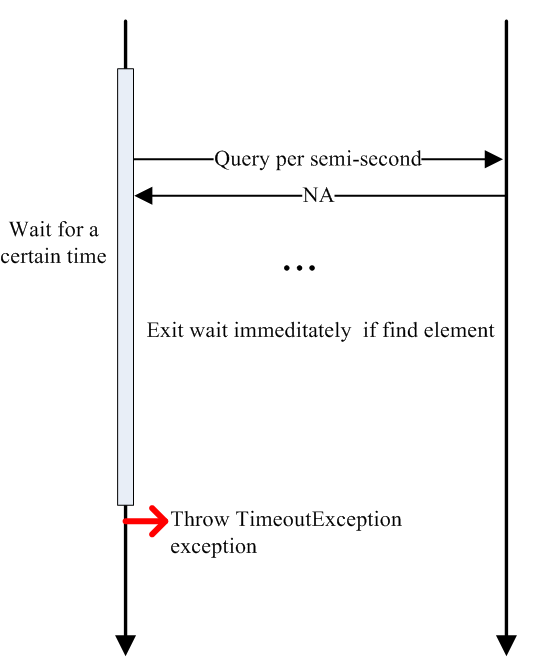
Please note:
- Explicit wait is more preferred in practice.
- In the worse case, iff timeout is reached and element is found, it is equivalent to Thread.sleep().
- WebDriverWait by default calls the ExpectedCondition every 500 milliseconds until it returns successfully
Implicit wait tells web driver to wait a certain amount of time when trying to finding element(s) if they are not immediately available. For instance, we set implicit waits value as 30 secs as follows. If web driver able to find an element within 30 secs, it will immediately keep executing otherwise raise an exception after 30 secs. In a word, web driver should wait 30 seconds.
driver.manage().timeouts().implicitlyWait(30, TimeUnit.SECONDS);
Steps:
- Web Driver check element’s availability
- If element is available, driver returns immediately. Otherwise, driver starts the implicit wait.
- While WebDriver waits for specified time period, it tries to query element(s) repeatly per second. If element is available, drivers returns immediately.
- Once the specified time is over, the driver will try to search the element once again the last time. If element is still not found available it throws a NoSuchElementException exception.
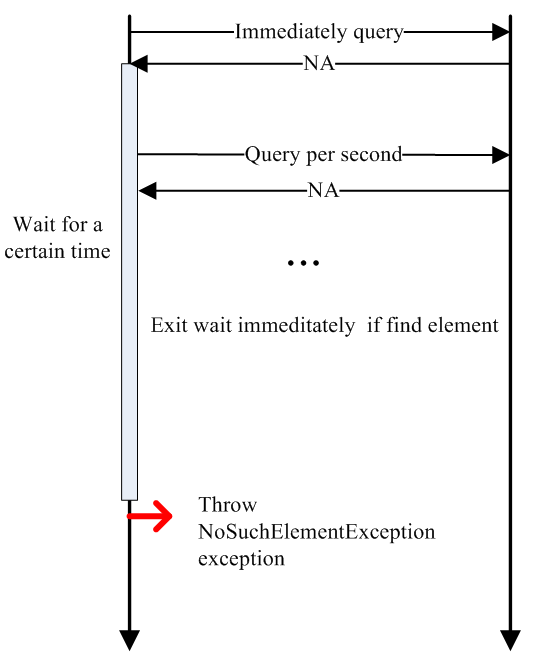
Please note that:
- default implicit timeout is 0
- Once set, the implicit wait is set for the life of the WebDriver object instance. That means, implicit wait works for all the WebElements in our script.
manipulate the page using DOM
grab the page source code:
String pageSource = driver.getPageSource();
get title
String title = driver.getTitle();
get url of current page
String currentUrl = driver.getCurrentUrl();
locate an element:
	// by id
	WebElement element = driver.findElement(By.id("XXElementId"));
	// by name
	WebElement element = driver.findElement(By.name("XXElementName"));
	// by class name
	List<WebElement> elements = driver.findElements(By.className("XXClassName"));
	// by tag name
	WebElement element = driver.findElement(By.tagName("XXTagName"));
	// by class selector
	WebElement element = driver.findElement(By.cssSelector("textarea#elementId"));
	// by xpath
	WebElement element = driver.findElement(By.xpath(".//input[@id='elementId']"));
More element selectors are available at here
This is a simple Java example to implement search “cheese” in Google.
	// initialize a WebDriver instance
	WebDriver driver = new HtmlUnitDriver();
	// load google search page
	driver.get("https://www.google.ca");
	// print title
	System.out.println("Page title: " + driver.getTitle());
	// enter search word and submit
	WebElement element = driver.findElement(By.name("q"));
	element.sendKeys("Cheese");
	element.submit();
	// print title
	System.out.println("Page title: " + driver.getTitle());
	// quit the driver
	driver.quit();
Here is the C# version to implement search “cheese” in Google.
    // initialize a WebDriver instance
    IWebDriver driver = new RemoteWebDriver(DesiredCapabilities.HtmlUnit());
    // load google search page
    driver.Navigate().GoToUrl("https://www.google.ca");
    // print title
    Console.WriteLine("Page title: " + driver.Title);
    // enter search word and submit
    IWebElement element = driver.FindElement(By.Name("q"));
    element.SendKeys("Cheese");
    element.Submit();
    // print title
    Console.WriteLine("Page title: " + driver.Title);
    // quit the driver
    driver.Quit();
Please note that before run the c# code, please download the Selenium server http://www.seleniumhq.org/download/ and make sure the server is started through following command. The server listens 4444 local port and communicate with remote server.
Start selenium server
java -jar selenium-server-standalone-2.20.0.jar
Check server status
netstat -na | find "4444"
Otherwise, it will report “No connection could be made because the target machine actively refused it 127.0.0.1:4444” exception.
This sample only demonstrates the basic steps to implement a fundamental search using Selenium. In Part 2, the detailed steps to install library in C#/Java as well as simulate browser operations will be explained.
-
Previous
Welcome to my blog! -
Next
Grab and parse data using Selenium WebDriver Part 2 - Java and C# implementations